How to Calculate the Mean in Excel
The AVERAGE function step by step — plus AVERAGEIF, MEDIAN, MODE, STDEV and VAR — with the same test-score set so you can cross-check every result.
AVERAGE — the basic mean
In Excel or Google Sheets, the mean is one function:
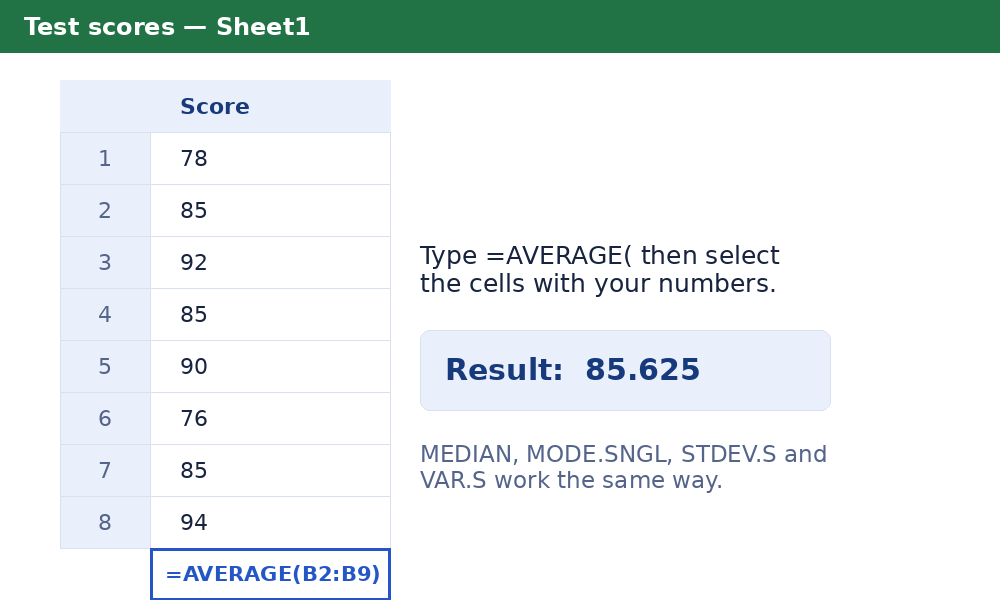
Type =AVERAGE(, select the cells holding your numbers, close the bracket, press Enter.
Applied to the test scores used across this site — 78, 85, 92, 85, 90, 76, 85, 94 in cells B2:B9 — it returns 85.625, exactly what the mean calculator shows with its steps. AVERAGE politely ignores empty cells and text, which is usually a blessing and occasionally a trap: a number accidentally stored as text is skipped just as silently. To average a whole column, use =AVERAGE(B:B) — but beware stray numbers elsewhere in the column (a total at the bottom will be averaged in).
AVERAGEIF for conditions
When only some rows should count — the mean score for one class section, the average sale on weekdays — use =AVERAGEIF(criteria_range, "criteria", average_range). Example: =AVERAGEIF(A2:A9, "Section 1", B2:B9) averages only the scores whose Section column says Section 1. AVERAGEIFS extends the same idea to several conditions at once. The condition is where spreadsheet means quietly go wrong: a criteria typo matches zero rows and returns an error or, worse, a plausible-looking wrong subset.
Median (MEDIAN), mode (MODE.SNGL / MODE.MULT)
- =MEDIAN(B2:B9) — the middle value; returns 85 for the test scores.
- =MODE.SNGL(B2:B9) — the single most frequent value (85 here); returns #N/A when no value repeats — Excel's blunt way of saying "no mode".
- =MODE.MULT(B2:B9) — all modes as a vertical array, for bimodal and multimodal sets.
The corresponding tools here — median and mode calculators — show the sorted list and frequency table that Excel hides.
Standard deviation (STDEV.S vs STDEV.P) and variance (VAR.S / VAR.P)
| Function | What it returns | Divisor |
|---|---|---|
| STDEV.S | Sample standard deviation (s) | n − 1 |
| STDEV.P | Population standard deviation (σ) | N |
| VAR.S | Sample variance (s²) | n − 1 |
| VAR.P | Population variance (σ²) | N |
.S for a sample of a bigger group, .P when your range is the whole group — the same decision as the toggle on the standard deviation calculator, which also shows the deviation table Excel never displays.
When a web calculator is faster
Excel wins when the data already lives in a spreadsheet and the mean is one step in a larger model. A web calculator wins when the numbers are in your head, on paper, or in a document: paste them, read the mean and the working — the sum, the count, the sorted data, the frequency table — without building formulas or wondering whether the range quietly included the totals row. For homework especially, the steps are the point: they are what a teacher marks. Our guide to the underlying method is how to calculate the mean.
More guides
Frequently asked questions
What is the Excel formula for the mean?
=AVERAGE(range) — for example =AVERAGE(B2:B9). It ignores empty cells and text automatically, and Google Sheets uses the same function name.
What does AVERAGE return for the test scores 78, 85, 92, 85, 90, 76, 85, 94?
85.625 — the same result as this site's mean calculator, so you can cross-check either against the other.
What is the difference between STDEV.S and STDEV.P?
STDEV.S is the sample standard deviation (divides by n − 1); STDEV.P is the population version (divides by N). VAR.S and VAR.P follow the same pattern for variance.
Why does my Excel average look wrong?
Usually one of three causes: the range includes a total row, a cell contains a number stored as text (which AVERAGE silently ignores), or a condition is needed and AVERAGEIF should have been used.